
How to download your Uber Eats order errors report, and dispute a charge
When a customer reports a missing or incorrect item, Uber Eats can take its cost out of your payout as an order error. The Order errors (transaction) report lists each one. Here's how to download it, and where to dispute one.
Download the report
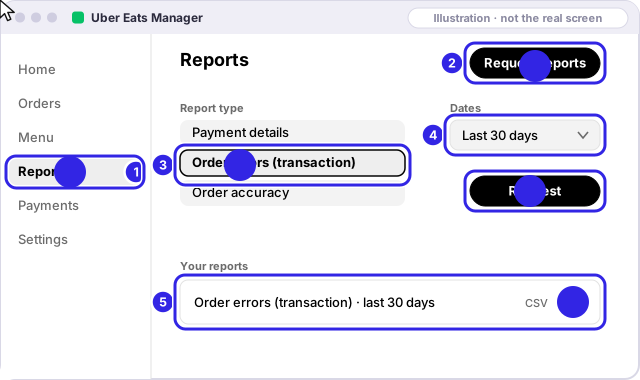
In Uber Eats Manager, on a computer:
- Open Reports.
- Click Request reports.
- Choose Order errors (transaction).
- Pick the last 30 days, then Request.
- When it's ready, click download to save the CSV file.
What an order error costs, and what isn't one
Uber Eats says the adjustment is the full cost of the items with errors, including tax, and that it keeps its full service fee for the whole order. Adjustments come out of your payout and show on your pay statement within one to two weeks of the order.
Uber lists these as not restaurant charges, even when the customer gets a refund (Uber's list):
- Food arriving cold, and food quality complaints.
- Damaged orders, like tampered packaging or spilled drinks.
- Late deliveries by Uber's couriers.
- Orders that never arrived, unless you use your own delivery staff or the store was closed.
- Reports made more than 96 hours after the order, and fraud or suspicious deliveries.
Missing items, incorrect items and incorrect orders can be charged to you. So can late or undelivered orders, but only when your own staff delivered them, or the store was closed while marked open.
Dispute a charge
In Uber Eats Manager (Uber's steps):
- Open the Orders tab and find the order.
- Select Dispute.
- Pick the reason and write what happened.
- Attach a photo or video if you have one.
The deadline: 30 days from the order date.
Uber says a photo or video is the best way to get a dispute resolved smoothly, and names three kinds it accepts: camera footage of the order being made or bagged, a photo of the sealed bag showing the order ID, and a photo of the signed-off ticket showing the order ID. It aims to answer within about an hour.
Uber also says disputes should come from you, with admin or manager access, and not from a third-party service or an automated tool. That's why unComped never submits for you: the check shows which charges may be worth it, and you click Dispute yourself.
Sources
Each app's own pages, checked Nov 2026. If a page now says something different, the app's page wins; tell us at hello@getuncomped.com and we'll fix the guide.
Not a law firm · not a substitute for the advice of an attorney · not affiliated with DoorDash, Uber Eats, Grubhub or ezCater
Checked against each app's own pages in Nov 2026. Apps change their rules; if something here no longer matches, email hello@getuncomped.com.